Home Lab
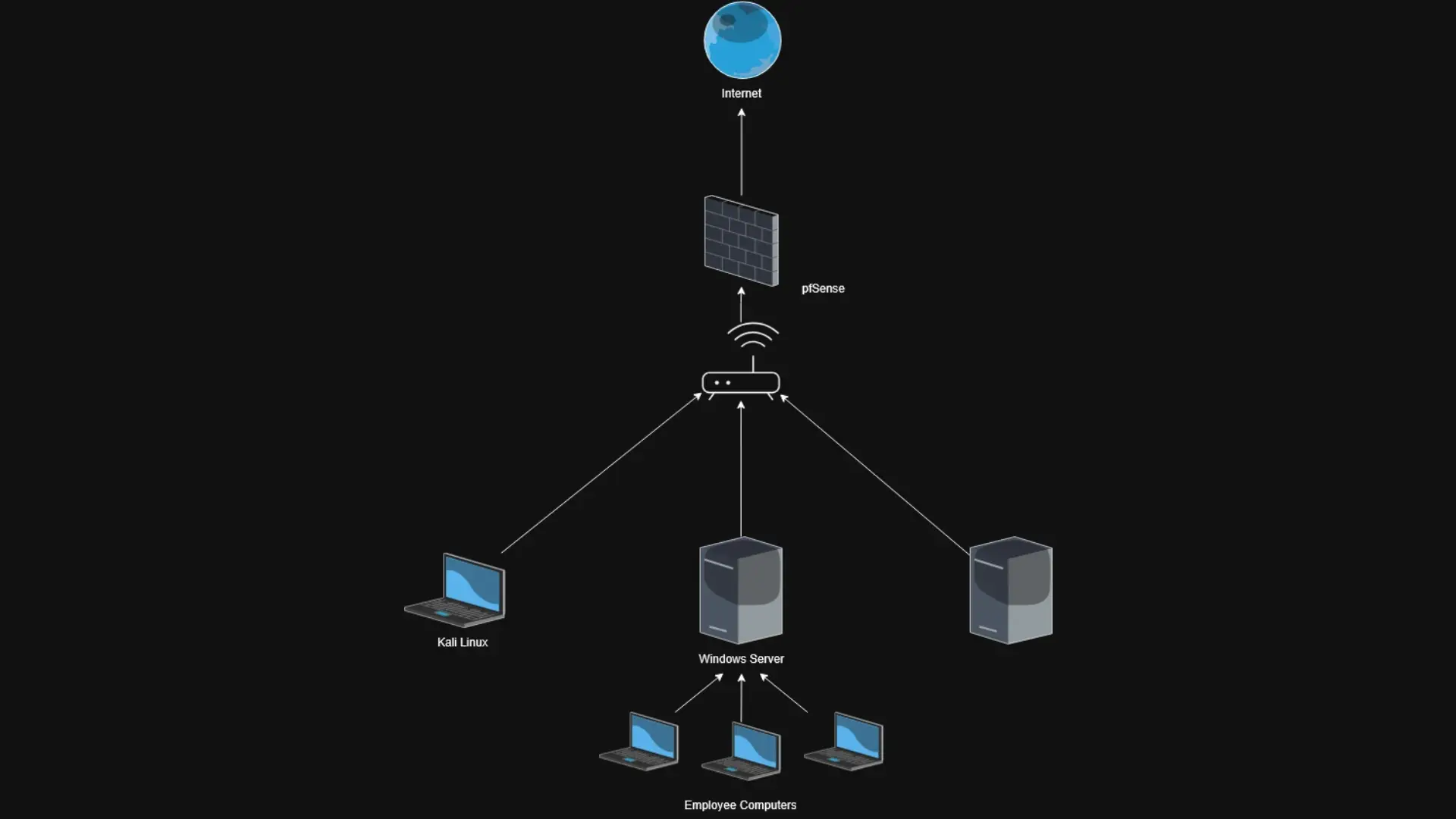
For practice with setting up, defending, and attacking networks, I decided to make a company network using VMs. This example network will have 3 separate LANs, one being a Windows server with AD that has all the employee computers, one being general management that has one computer running Kali, and a miscellaneous LAN. Finally, everything will run through pfSense, which will be the firewall.
Initial Setup
I decided to use VirtualBox for setting up all the VMs. I downloaded pfSense 2.7.2 and set up 4 network adapters connecting to this VM.
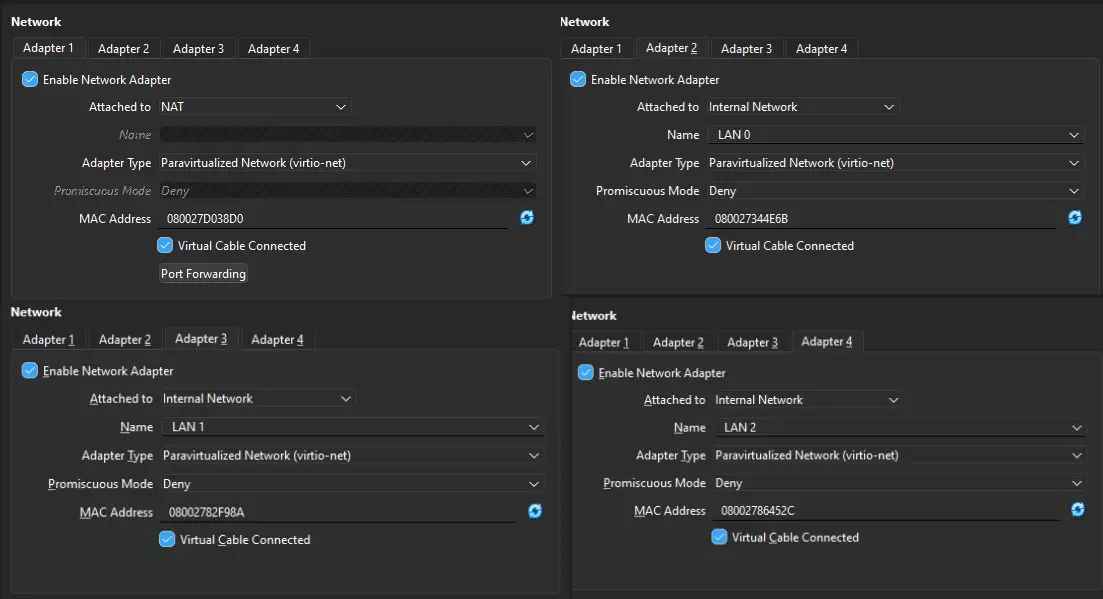 Adapter setup in VirtualBox
The first one is a NAT, which connects the virtual machine to the internet. This is the only network adapter in this setup that will have direct access to the internet. All Traffic will go through here.
The next 3 are separate LANs for each section of the network. LAN 0 is for management with kali linux and LAN 1 is the windows server with active directory.
pfSense
After this, I booted up pfSense and did a normal install. It detected my 4 network adapters and gave an IP to the WAN and LAN. I wanted to give all 4 a static IP, so I set the interface's IP address.
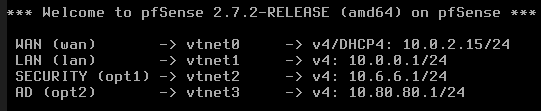
This was all I did in the console for pfSense, and I went to install Linux on the management LAN to finish the setup online.
The only setup I did with Linux was to make sure that the only adapter was using LAN 0. This made sure that the virtual machine was connected to that LAN and could access pfSense web configuration.
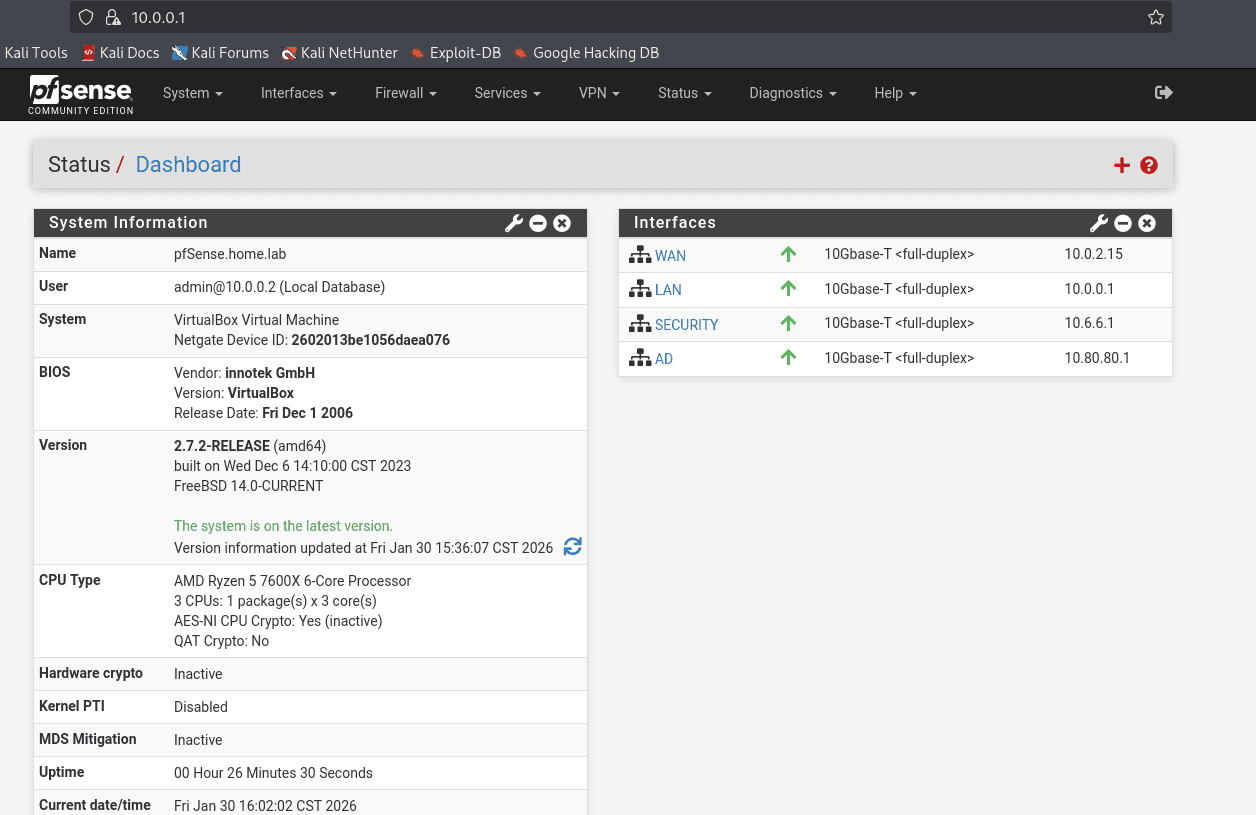 pfSense dashboard after setup
The main things I did were disable IPv6 for IP assignment, which I did in Interfaces -> WAN. I also renamed everything, so I know what everything is. I gave this Linux machine a static IP by going into Status -> DHCP Leases

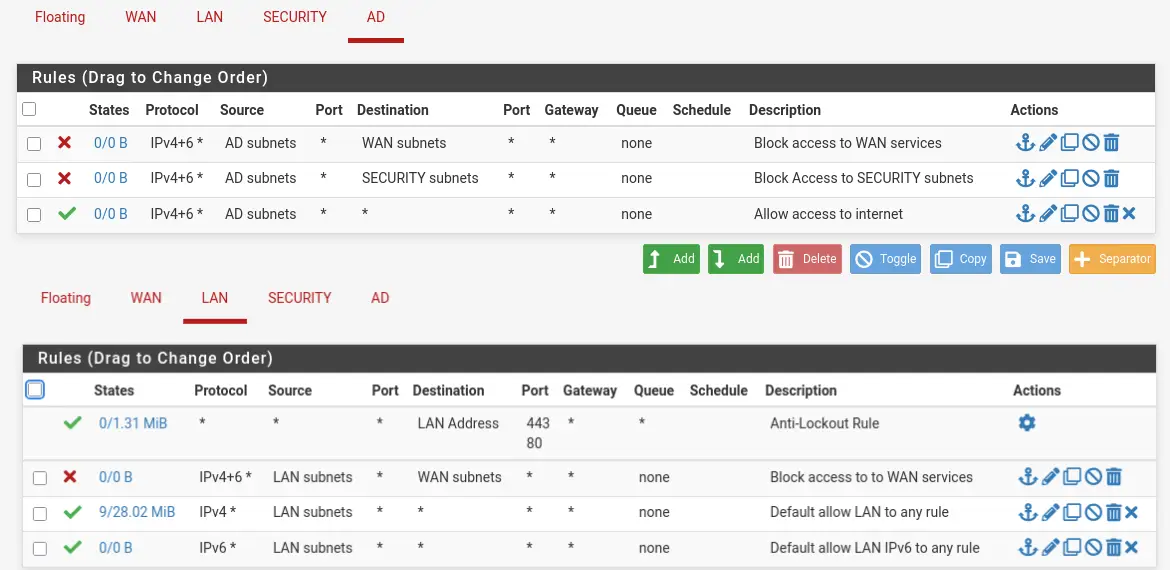
Finally, I set up basic firewall rules for all the interfaces. Most of these were basic rules of disallowing access to other LANs so that they don't mess with each other. (i.e., the Windows server shouldn't have access to the forensic LAN).
Windows Server and Active Directory
Next was setting up the Windows Server with Active Directory. Currently, only one computer will be connected to this Active Directory, but there will be 3 users, with one being an Administrator.
I decided to use Windows Server 2022 and Windows 11 as the example employee computer. I installed Windows Server with the GUI and had a fresh install of Windows 11. For the Windows Server, the features I installed were Active Directory, DHCP, and DNS. I didn't use the DNS with pfSense and wanted to use the one with the Windows Server.
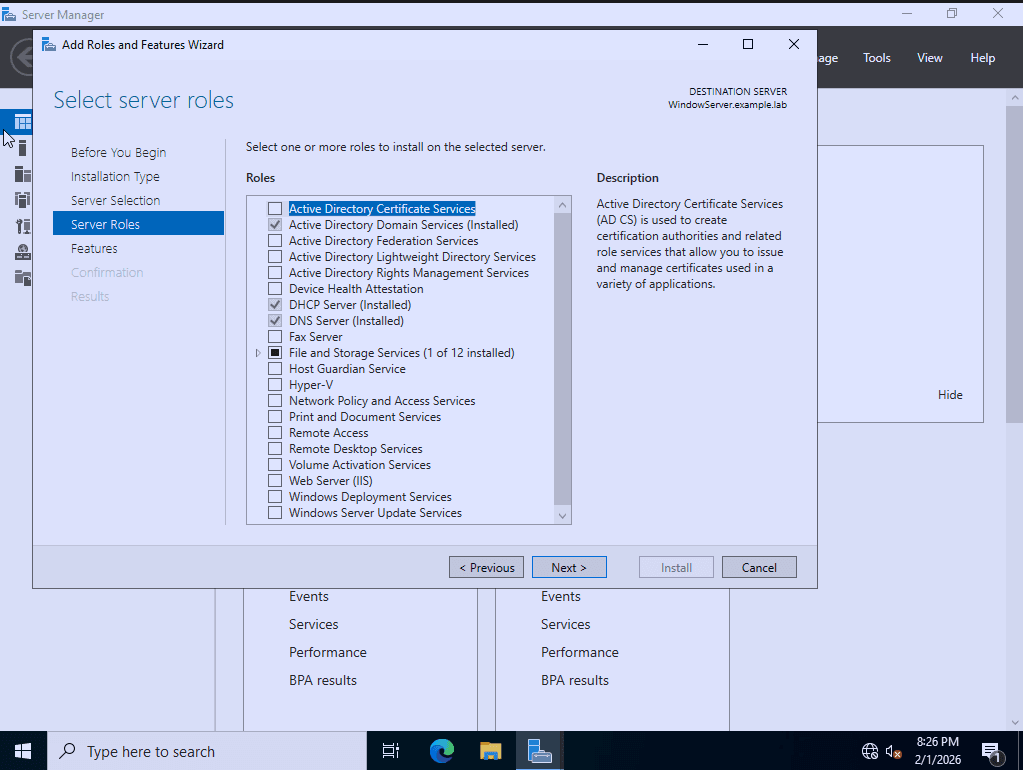
For installing Active Directory, I made a new forest named example.lab and installed it. On restart, I headed to Tools -> Active Directory Users and Computers. I created a new Organizational Unit called Example Company and made a group called employees. Then I headed to Users and created 3 users, James Doe, John Smith, and Sally Doe. I gave them all the employee group and gave John Smith admin.

I created a new Windows 11 Virtual Machine with a default install with a Local User. Upon starting it, I headed to Settings -> About -> Domain or Workgroup. I entered my domain of example.lab and rebooted the PC. Upon boot, I still had the Local User there, so I deleted that User and set the group policy for Don't display last signed in to make it so that on start, it doesn't show the name of the last user.

Finally, I could log in to Sally, John, or James account from one computer.

DNS and DHCP setup
For DNS and DHCP, back on the Windows Server, I opened DHCP and set a new scope in IPv4. Since I'm not using IPv6, I will not set up a scope for that. I gave the IPs from 10.80.80.11 to 10.80.80.253 with a Subnet Mask of 255.255.255.0. For the router, I linked it to the 10.80.80.1 IP, which linked back to pfSense. I set the DNS to point to the Windows server at 10.80.80.2 and activated the scope.

Conclusion
There is one more LAN that I have set up, but I haven't assigned anything to it. Currently, it is running a simple web server, but eventually I will set up either a network scanner or a mail server.
The rest of the setup is done with everything having access to the internet and going through pfSense.